Showing posts with label TFS. Show all posts

Friday, May 28, 2010

Problems Running Tests When Preserving Output Directory Structure with Team Build

Previously I’ve posted about how to override the Team Build default output directory scheme and produce something a bit more sane.

Unfortunately if you do implement this it can break the built-in test run task, and most of the recipes related to it. You’ll get the following error in your build logs:

MSBUILD : warning MSB6003: The specified task executable "MSTest.exe" could not be run. The directory name is invalid

If you run the build with /verbosity:detailed to see the actual args passed to MSTest.exe, and then run MSTest yourself interactively, you’ll see the real underlying error:

Directory "(my build path)\Binaries\Debug" not found.
For switch syntax, type "MSTest /help"

The problem here is that (as detailed on the TestToolsTask doco) the team foundation build targets sets up MSTest.exe with SearchPathRoot="$(OutDir)", ie $(BinariesRoot)\$(Configuration). But if you overrode CustomizableOutDir and never actually copied the binaries out to the output folder that directory will never get created.

Fix 1:

If you’re not really using CustomizableOutDir, remove it. Reverting to the default Team Build directory structure is the simplest way of getting the tests to be located and executed and everything to ‘play nice’.

Fix 2:

Make sure that if your TFBuild.proj says CustomizableOutDir you do actually have the corresponding custom tasks in the individual projects to copy the binaries (see my previous post), otherwise you end up with no output whatsoever, and the test task will fail.

Fix 3:

If you want CustomizableOutDir but want to be robust to the possibility that your project builds may not populate the output directory structures properly, you can hack your build to run the tests out of the source \bin\debug folders.

My first pass was just to add the following to my BeforeTestConfiguration target (that I’d added from the Running Unit Tests without a Test List recipie):

    <!--because this is what the TestTask gets its SearchPath set to, it must exist-->

    <MakeDir Directories="$(OutDir)"/>

But that wasn’t good enough on its own, because now the error was:

CoreTestConfiguration:
File "..\..\(blah)\bin\Debug\Assembly.UnitTests.dll" not found

The relative paths to the test assemblies were correct relative to the $(SolutionDir), but not relative to the $(OutDir). So, for want of a better answer, I just overwrite OutDir for the duration of the test task:

   <!—defined elsewhere-->

   <TestsToRun Include="$(SolutionRoot)\%2a%2a\bin\$(Configuration)\%2a.UnitTests.dll" />


  <Target Name="BeforeTestConfiguration">

    <!-- normal bits as per the recipe-->

    <Message Text="Using tests from @(TestsToRun)" Condition=" '$(IsDesktopBuild)'=='true' " />


    <CreateItem Include="@(TestsToRun)">

      <Output TaskParameter="Include" ItemName="LocalTestContainer"/>

      <Output TaskParameter="Include" ItemName="TestContainer"/>

    </CreateItem>


    <Message Text="LocalTestContainer: @(LocalTestContainer)" Condition=" '$(IsDesktopBuild)'=='true' " />


    <!--Fix to allow use of CustomizableOutDir -->

    <MakeDir Directories="$(OutDir)"/>

    <PropertyGroup>

      <OldOutDir>$(OutDir)</OldOutDir>

      <OutDir>$(SolutionDir)</OutDir>

    </PropertyGroup>

  </Target>


  <Target Name="AfterTestConfiguration">

    <PropertyGroup>

     <OutDir>$(OldOutDir)</OutDir>

    </PropertyGroup>

  </Target>

Whether this is a good idea or not I’m not sure, but it does seem to work. Note that I put it back the way it was afterwards (using AfterTestConfiguration).

Moral

I think the story here is that using CustomizableOutDir is a complete pain in the arse, which ends up requiring considerable customisation of the rest of the build workflow. I don’t mind a prescriptive process per-se, but I do have a real issue with the ‘flat’ output directory structure that Team Build kicks out. But attempting to change it just seems to cause a heap more trouble than it’s worth.

Actually - as Martin Fowler said years ago - using XML as a build language is a really dumb idea in retrospect. Everyone says TeamCity’s pretty cool: might be time to take a look at that…


PS: If you’re trying to get your head around what happens where in Team Build (aren’t we all) there’s a great Team Build Target Map over at the Accentient blog

PS: I notice on Aaron Hallberg’s blog there’s a much simpler approach if you just want to separate per-solution output directory structures, which may not suffer the same problems.

Wednesday, June 10, 2009

Preserving Output Directory Structure With Team Build 2008

The default TFS drop folder scheme is a train-wreck where all the binaries and output files from the entire solution are summarily dumped into a single folder (albeit with some special-case handling for websites). Its just gross.

What I wanted, of course, was a series of folders by project containing only the build artefacts relevant for that project: ‘xcopy ready’ as I like to say. Pretty sensible yes? Quite a popular request if one Googles around: one wonders why the train-wreck scheme was implemented at all. But I digress.

Contrary to what you (and I) may have read, you actually have to do this using AfterBuild, not AfterCompile (which fires way too early in the build process[1]). So the canned solution is:

Put this in your TFSBuild.proj:

  <PropertyGroup>

    <CustomizableOutDir>true</CustomizableOutDir>


    <!--  TEAM PROJECT

(this turns off the ‘train-wreck’ scheme, and goes back to each project’s output going to their bin\debug or whatever folder)

Put this in any project file that you want to capture the output from:

  <Target Name="AfterBuild" Condition=" '$(IsDesktopBuild)'!='true' ">

    <Message Text="Copying output files from $(OutDir) to $(TeamBuildOutDir)" />

    <ItemGroup>

      <FilesToCopy Include="$(OutDir)\**\*.*" />

    </ItemGroup>

    <Copy SourceFiles="@(FilesToCopy)" DestinationFiles="@(FilesToCopy ->'$(TeamBuildOutDir)\$(AssemblyName)\%(RecursiveDir)%(Filename)%(Extension)')" />

  </Target>

And hey presto:

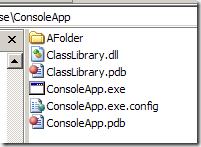
image

image

A series of output folders, by assembly, containing only the artefacts relevant to that assembly, as opposed to the

Note however that with this scheme you get all files marked ‘Copy to Output Directory’ but not files marked as Content, which makes this currently unusable for deploying websites and means it’s not strictly speaking xcopy-ready[2]. Hopefully there is an easy fix to this, otherwise I’ll be diving back into the SNAK codebase where I’ve solved this previously.


[1] before serialization assemblies are generated, and before the obj folder has been copied to the bin folder. A good diagnostic is to put <Exec Command="dir" WorkingDirectory="$(OutDir)"/> into an AfterCompile target, and take a look at what you get back.
[2] I have a big thing about this, which is why I dislike the ClickOnce build output so much. Build and deploy need to be considered separately.

Thursday, August 07, 2008

Continuous Integration in TFS 2008: Part 2

Ok so in Part I I missed two important features due to a schoolboy cut-and-paste error:
  • The association of a build with the changesets that triggered it - fantastic for trouble shooting
  • Automatically raising a 'bug' work item for 'he who broke the build' to fix it. Sweet.
Maybe I'll go into those in more detail another time, maybe not. They are cool. But here's the not-cool stuff:

Stupid default working directory / issues with path length
Straight out of the box many of my builds failed with excessive path length errors. Unfortunately the build agent starts with its default working directory of C:\Documents and Settings\NetworkService\Local Settings\Temp\ so I've got 61 extra chars on my path before I've even started, and we were already skating pretty close to the 255 chars limit (think BizTalk, over-zealous namespacing, auto-generated code etc...). Easily fixed, but seemed like a silly place to start.

Ok, it's going to be a bit less under Vista / Server 2008: still too long. Is C:\Builds so wrong?

Binaries deployed to shared Staging folder
More problematically, the folder structure created on the staging share is a complete mess, totally useless to use as the source for xcopy deployment to testing environments and the like. I'll show you what I mean:

Here's my solution structure: 4 deployable applications and one shared library:


And here's the staged output from the TFS build:


Pretty disappointing. All the binaries from all of the different applications have been dumped in the same folder. At least the websites have also been spat out in 'xcopy ready' form, but god help me if I wanted to Xcopy the console app one place and the WinForms app somewhere else.

What I'm looking for is more or less what I get out of SNAK right now:


...with any deployable asset (exe, website) neatly packaged to be copied off somewhere.

Same-name content files overwritten
Ok, I guess I could just accept the above and copy everything, only using the EXE that I want, but that's icky, and it does rather suppose there aren't any naming conflicts between the deployable artefacts.

For example: I added some files marked as Content in my HelloWorldConsole app, but they got completely ignored by the deployment process. I had to also mark them as 'Copy to Output Directory' before TFS build stuck them anywhere (which I'm not convinced is correct behaviour, but there you have it), and then it stuck them in the 'right' relative location to the build root folder:


...becomes...


But there are two 'Subfolder1's above, and I only got one out at the end. Predictably, one of them got overwritten.

When would this be a problem? When could different projects possibly have a content file with the same name?! I can think of some examples:

  • We always use a file 'log4net.config' to host our logging configuration, so we can change it on the fly without recycling app pools and the like. Only one project would have got the right configuration.
  • Bundled licence files (Licence.lic) would get mixed up
I'm sure you can think of some more. And yes, using Embedded Resources works fine, but they're not always an answer (eg: log4net.config).

There is a fix. There's some changes you can make to your *proj files to make them preserve the output path hierarchy when deployed to the build drop folder. But it's a per-project fix, and that's - frankly - a bit lame. I know you don't add new project to your solution on a daily basis, but it's just one more thing that needs to be kept on top of, or things start falling apart. And that's just not how all this is supposed to work.

(Alternatively you could customize everyone's project templates. I guess you could fix it on all their PCs, or you could just put a fixed template on a share somewhere and tell people to use it. Since it's one of the default project types you're amending I guess you probably have to remove the original from their machine too. And hope they don't have to re-install VS anytime...)

Conclusions
Getting VSTS to perform Continuous Integration on your project is now really easy. To be fair, this on it's own was pretty easy with CCNet too, but it's even easier now, and we don't have to fight over the CCNet.config file.

But the staged output from the build strikes me as limited in use. It's possible to go and hack about with the generated MSBuild files that actually perform the build and stage, and bend it to my will, but that's just what I don't want to have to do. I want it to 'just work' and I don't think we're there yet.

Tuesday, July 15, 2008

Continuous Integration in TFS 2008: Part 1

Many people now accept the benefits of a regular / continuous integration cycle (even if they don't actually practice it themselves). Picking up the pieces after someone's broken the checked-in source code, especially if it's not picked up for a few days, can be a real time waster.

Like many agile practices, however, the cost / benefit is hard to quantitatively analyse. It's far easier to justify therefore if it's really easy to setup: as the costs tend to zero the benefits become essentially 'free'. And you could argue that tools like CruiseControl.Net have made it pretty easy.

Personally, having spent significant sections of the last 3 years getting CCNet / Nant build cycles going on various projects, I'd beg to differ. Sure, it's really easy to setup CCNet / Nant (or CCNet / MSBuild) to build your solution, but that's only the first step in the process. Typically you also want to do things like:
  • Import the latest built version of external dependencies (ie components maintained outside of the solution being built)
  • Execute unit tests
  • Execute integration tests (so config files pointing at databases etc... have to be in the right place)
  • Package the build outputs nicely ('xcopy ready')
  • Deploy and install into test environments
CCNet and NAnt don't really give you this stuff 'out of the box'. You spend time gluing bits together, inventing your own build process and so on, and maintaining this stuff seems to get out of control very easily. Deploy and install is a particular minefield, because somewhere in there you have to start doing configuration file substitution (put your test server settings in the web.config etc...). And doing all this in XML just rubs salt into the wound.

You can handle most of this by hand on small projects, but the last app I worked on had five or six deployable parts to it (webservices, windows services, Winforms with ClickOnce manifests and the like), each of which had 20 or so settings to change for each of 7 different environments and the differing systems it integrated with. That's 100's of settings to keep track off, without even getting into the Biztalk artefacts, and that was only one of several projects of similar complexity. Automation's a no brainer at that point.

My solution to try and scale back the per-project cost of managing this was my own open source project SNAK. This attempted to commoditize a standard build / test / package / deploy process that you could implement on your side by pretty much setting a single variable at the top of a build script. And I think it works reasonably well: but it's clearly not the answer, not least because it took a fair amount of my (and others) time, of which I have very little.

So I was very, very hopeful when I started looking at the CI support in TFS 2008. Microsoft were really bashed over CI (lack of) in 2005, but this time round it looks like they've delivered:


You pretty much pick your solution file:


...your output directory...


...and your build frequency, and off you go:


Given how hard it was to deal with VSTS tests under CI in 2005 (because the test file was always in the wrong place), this screen will be a real pleasure to some:


And if you've tried to implement a build output retention policy in NAnt, you'll really appreciate this:


So up until now, absolutely fantastic. But then I had a few issues, which I'll deal with in Part 2 (so as not to take the gloss off the good bits above).


[I was due to present on this topic at the Perth .Net user group the other week, but a failing laptop saw to that (not the way I was expecting the demo to fail!). Since there's now no slots till Xmas, I've recycled some of the content into this post. The laptop was lobotomized and is recovering well...]

[Readify are doing a Dev Day in Perth on the 29th, with TFS as one of the tracks, so I'd be surprised if they didn't cover this there]

Thursday, June 26, 2008

Beyond Compare 3 supports 3 way merge, is totally awesome

Beyond Compare 3 is out in beta. It supports 3 way merges!

I found this out literally minutes before I started what turned into a 2 day mergeathon between two large and divergent branches in TFS, with *lots* of merge conflicts to manually resolve, and I can honestly say I'd probably still be merging if I hadn't downloaded it. It's just fantastic.

I'll probably post some screenshots etc... soon, but if you're struggling merging with BC2 and/or the built-in diff/merge support then you really should check it out.

Thursday, January 03, 2008

Path already mapped in workspace error with CCNet and TFS

Had a problem with CCNet that kept me here till midnight where try as I might, I just couldn't get a build to not fail with the dreaded "Path ... is already mapped in workspace ..." error:
Microsoft.TeamFoundation.VersionControl.Client.MappingConflictException: The path C:\Builds\etc\Working is already mapped in workspace someworkspace
We use a different workspace for every CCNet project to avoid collissions, and to maintain uniqueness we keep the workspace name the same as the CCNet project name. I couldn't find the workspace in question, and was pretty sure I'd already deleted it. In fact I'd used TF Sidekicks to delete all the build user's workspaces, and it still didn't work. So what was up?

Fortunately in a post 'How to handle "The path X is already mapped in workspace Y"' I learnt of the mappings cache file on the client PC, in the user's Local Settings\Application Data\Microsoft\Team Foundation\1.0\Cache\VersionControl.config file. Just nuking workspaces on the server isn't enough!

So to be sure I blew away the build server's local profile entirely, and that finally fixed it.

Popular Posts